Logging Service Setup
Overview
TransLution Android writes a log entry for each processing step to a file on the device. This file-based logging approach is designed to minimise overhead and ensure scanning performance is not impacted during operation. Log files are stored in a target repository for later evaluation and analysis.
File Creation
Both the TransLution Android software and the TransLution WCF Service components are configured to write a log entry for each processing event. Each event entry includes a code that identifies the processing currently being performed.
Each file is written to a folder defined in the software as follows:
- Android: [CompanyDatabase]_DEVICENAME_JobNo_yyyymmdd.log (E.G. [TL_Sage]_Scanner01_58605_20260114.log) – This file is created on the Android device as each even takes place. When the job is completed, this file is moved to the server logging folder.
- WCF Service: [CompanyDatabase]_WCF_port_JobNo_yyyymmdd.log (E.G. [TL_Sage]_WCF_8783_58605_20260114.log) – This file is being written for every event that takes place. The events are appended to the job file.
The default logging folder is C:\TransLutionLog.
File Consumption
The files are always consumed and processed in pairs. Each TransLution Android and TransLution WCF Service file must be consumed together to create a set of events for each job.
Two methods are available to process the files. The first is a manual process, managed via a console that displays the results of each job's events while the second is a service that processes log files in the background. In almost all cases the service is the preferred method, the console should only be used if you are dealing with an exception.
Service
The managed log files service handles log file processing in an unattended mode. The configuration details are saved in a file named TLLogFileService.xml in the TransLutionSettings folder
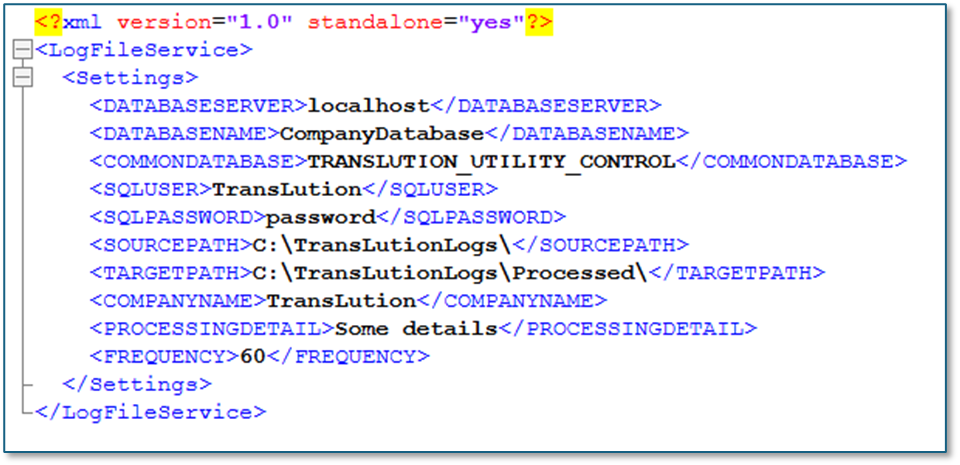
Service Settings File
The content of the settings XML follows the same standards as all other service or utility settings. The main difference is with the following tags:
- <SOURCEPATH>: This is the path where the log files are saved by the TransLution WCF Service.
- <TARGETPATH>: This is where the log files are moved for processing by the Import Service.
- <COMPANYNAME>: The name of the company to be used when inserting the TRANSLUTION_LOG_HEADER row. When importing a file to the company database, the console pops up a modal form to allow the user to enter the name of the company and some details about the job that was executed to create the job data. On a service, this is not possible, so these details are included in the configuration file.
- <PROCESSINGDETAIL>: This is used the same way as the company name, but for the details on the header row.
- <FREQUENCY>: The time in seconds that the service will execute. It's probably acceptable to make this time a few minutes as the files will accumulate quite quickly but the service will take some time to process each file.
Console
The console is installed in the TransLution installer folder on the "C:\Programs (x86)\TransLution\TransLution Manage Log Files" as follows:

Installation Folder
The application opens with the following screen:

Console Application
The application must be configured to ensure the correct SQL connections are made. Selecting the "SQL Config" menu item will open the following form:
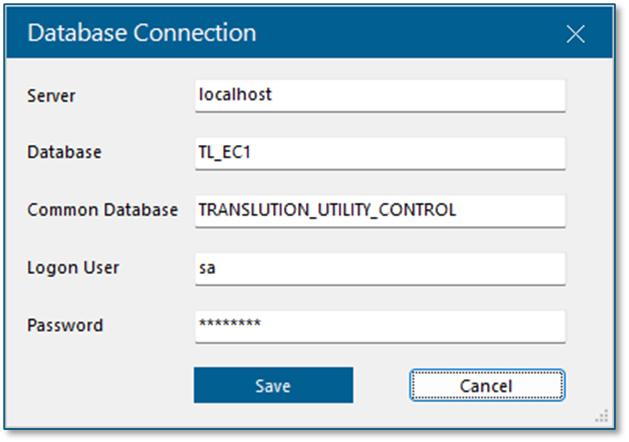
Database Connection Settings
The "Database" value MUST match the database used when scanning or entering text for the jobs on the scanner. The log file processing uses the function area id and flow step id to retrieve descriptions and other data from the company database required to create the logs.
The Common Database value is the name of the database for the WCF Service on the scanner jobs' port. The Common Database name is required so that log file processing can identify the device used for the job.
Database Tables
There are two tables used by the TransLution Log file import console and service.
- TRANSLUTION_LOG_HEADER: There is one header row for each log file that is processed. The header table contains the details of the log file including an audit time of when the file was imported.
- TRANSLUTION_LOG: The details on both the log files for a job are imported to this table. The ID of the header table is included in the log table as a reference to the file name used for the import.
Event Logging
Instead of using a Windows Event Log, a log4net log will be available in the ErrorLogs subdirectory of the service’s installation location. It will include info lines to indicate success, but more importantly, any errors or warnings that may occur. It’s appended to throughout the day, with a new file created each day.
Log File Cleanup
After the log files are processed, they are moved to an ARCHIVE subfolder on the "TARGETPATH" key in the service settings file.
It is recommended that the TransLution File Deleter service be configured to delete these files, so that no more than 2 days' worth of files are retained at any time. The service archives the files rather than deleting them in case the source data needs to be referenced if there's a problem with the performance views or the imported data.
The log4net logfiles should be included in the cleanup, since the file for each day can get very large.